
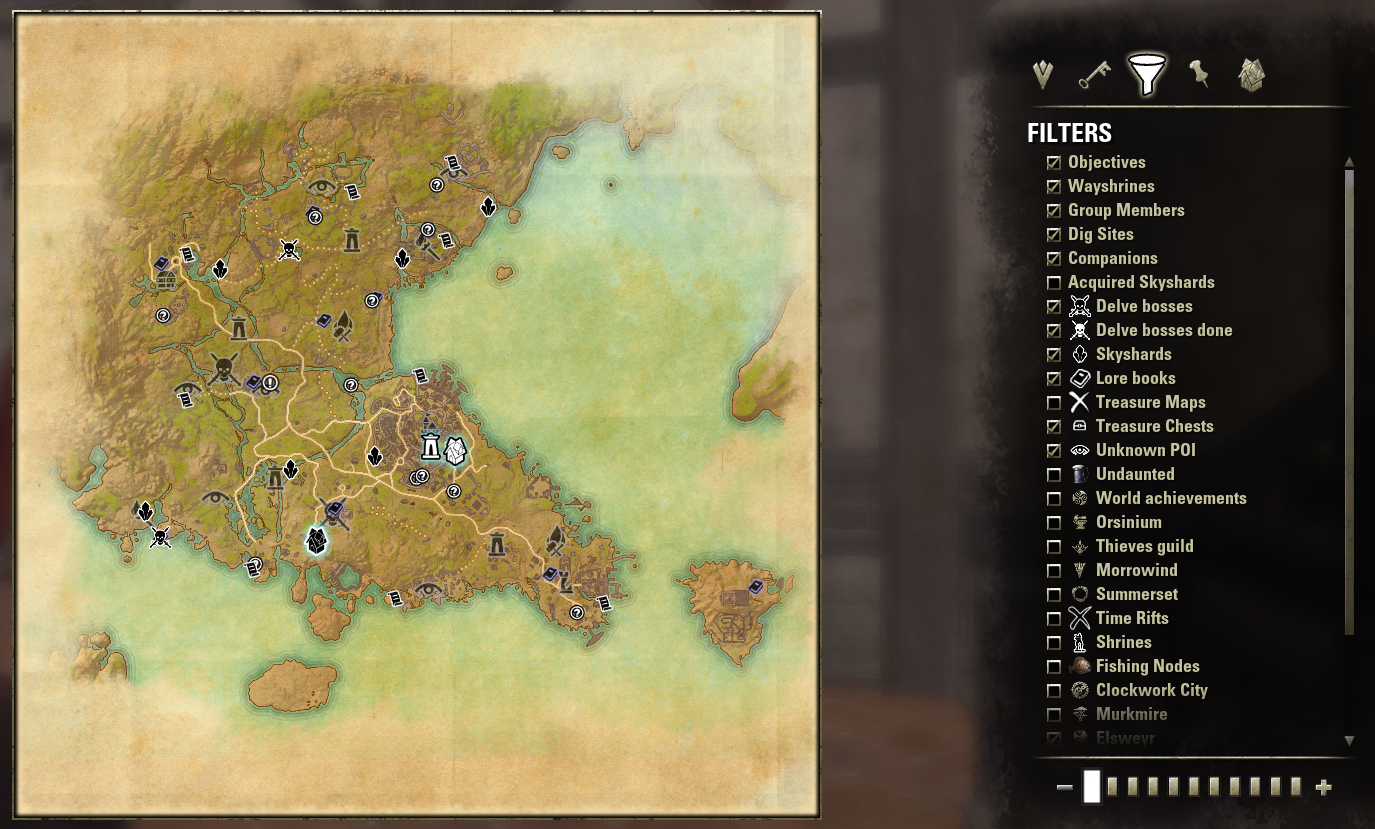
Map Pins is a small, simple, addon that adds a lot of information to your world map. It includes locations for:
- Dungeon Bosses
- Skyshards
- Lore books
- Treasure and survey maps
- Unknown POI
- Mundus description
- Crafting Station description
- Chests (known base and ability to add new)
- Vampire & Werewolf shrines
- Fishing nodes
- Celestial Rift
- and much more


By clicking on the Funnel, to the right of the map, you can turn on/off filters of what will be displayed on the map.
Overview of Install Process
- Download the selected addon and any required libraries
- Extract the addon files from the downloaded files
- Go to your ESO folder and locate the Addons folder. If it is not there, create one
- Move the addon files to the Addons folder
- Enabling the addon
Download

We will be installing the Map Pins addon. This is a small addon that doesn’t require any libraries. Some addons do require additional libraries and those need to be downloaded and installed separately. The Map Pins addon can be downloaded from the ESOUI website. I recommend creating an “ESO Addons” folder in your Downloads folder to save the file to.
Extract the Files

Once the file as been download, open File Explorer and navigate to the folder you saved the file to. This will usually be Downloads by default, or in the case of the example Downloads\ESO Addons. Once there, you should the file. Right-click on that file and select Extract All… Accept the defaults and select the Extract button.
Locate ESO Addons Folder

If using a PC, the default install path is: C:\Users\< username >\Documents\Elder Scrolls Online\live\
If using a Macintosh, the default install path is: ~/Documents/Elder Scrolls Online/live/
Using File Explorer navigate to the above path and look to see if there is an AddOns folder. If not, one will need to be created.
Open the AddOns folder and Copy/Move the Files

It’s important to note that when the files were extracted from the downloaded file, a new folder called Map Pins was created. This is a it confusing, because inside that folder is the actual Map Pins folder, containing the addon files. You will want to make sure to copy that second folder, not the first one. So the path should look like:
Your final path should look like:
C:\Users\< username >\Documents\Elder Scrolls Online\live\AddOns\Map Pins\<files>
not
C:\Users\< username >\Documents\Elder Scrolls Online\live\AddOns\Map Pins\Map Pins\<files>
Making Sure the Addon is Enabled
The first time you install an addon, you will need to agree to the Terms of Service (ToS) for using addons. The addon will not be enabled until you do. To accept the TOS, you will need to go into the settings (press ESC in game) for ADD-ONS. Once accepted the window should look similar to the image below. You may also need to Reload UI to make it active.

Wrap Up
The process is pretty simple, but tedious. Additional addons can be installed while the game is running, but you will need to run “/reloadUI” for them to become enabled. In the next article we will cover managing the addons with a 3rd-pary app, called Minion.
Similar/Compilatory AddOns:
The following addons provide some duplicate functionality, but enough additional features to make them worth adding also.
- Destinations (Quest Givers, Achievements, etc)
- HarvestMap (Harvest Nodes)
- HarvestMap-Data (Allows you to load known nodes that you have not discovered yet and upload your data to master database. It requires running a script, when the game is not running.)
